

A Beginner’s Guide to the Mac Finder
If you’ve ever wondered what the Mac Finder is or why it’s always open, this guide will help you understand exactly what it does — and how to use it. Finder isn’t just another window on your screen. It’s an app that launches automatically when you start your Mac and stays open the whole time. It’s what shows your desktop, keeps your files in order, and helps you move between documents, folders, and drives.
Once you know how to use Finder, you’ll feel far more confident managing your files and navigating your Mac.
What Exactly Is Finder?
When your Mac starts up, Finder begins running in the background immediately. It’s the program that shows your desktop, lets you open files, and manages your folders. Even when you close everything else, Finder is still running — you can’t quit it because your Mac depends on it.
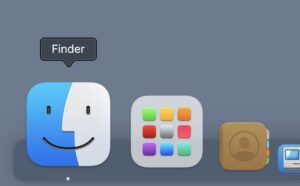
Try it yourself:
- Look at your Dock — the row of icons at the bottom of the screen.
- The smiling blue-and-white face on the far left is Finder.
- Click it to open a new Finder window where you can see your files.
You can also click anywhere on your desktop background — that brings Finder to the front. You’ll know it’s active because the menu bar at the top left will now say Finder beside the Apple menu.
Inside a Finder Window
A Mac Finder window has four main parts. Understanding these makes it much easier to find what you’re looking for.
- Sidebar — The column on the left lists your main folders: Desktop, Documents, Downloads, and Applications.
- Toolbar — The row of icons at the top lets you move back, change how files appear, and open new tabs or windows.
- Main Area — This is where you’ll see your files and folders.
- Search Field — The box in the upper-right corner helps you find anything on your Mac.
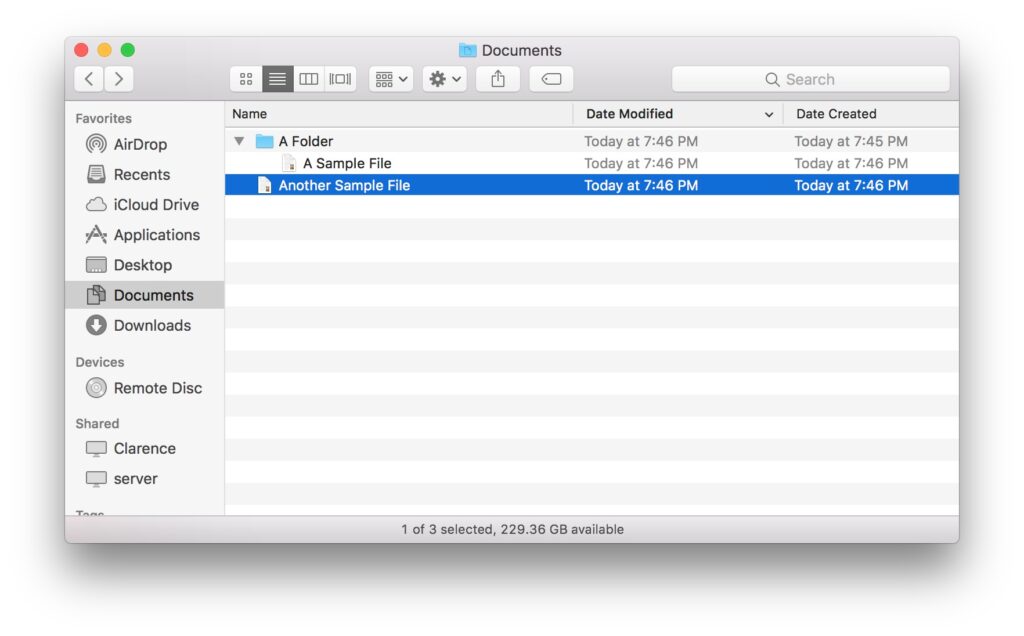
Try it yourself:
- Click Finder in the Dock.
- In the sidebar, click Documents — your main writing and project folder.
- In the toolbar, click the Grid View icon (four small squares) to switch how files look.
- Type a filename in the search bar (top-right corner) to find it instantly.
Key Finder Folders Explained
Every Mac has several main folders you’ll use all the time. Here’s what each one does — and how to open it.
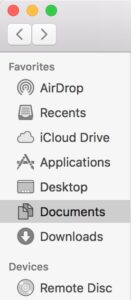
| Folder | What It’s For | How to Open It |
|---|---|---|
| Desktop | Everything you see on your desktop screen lives here. | Click Desktop in the sidebar or choose Go ▸ Desktop from the menu bar. |
| Documents | For your written work, PDFs, and general projects. | Click Documents in the sidebar. |
| Downloads | Files you get from the internet (emails, browsers, etc.). | Click Downloads in the sidebar. |
| Applications | Where your installed apps live. | From Finder, click Go ▸ Applications. |
| Pictures, Music, Movies | Where Photos, Music, and TV store your media. | Click Go ▸ Home to find these folders. |
How to Move, Copy, and Organize Files
Finder makes it easy to organize your Mac by dragging, copying, and sorting files.
Move a file
- Open two Finder windows — choose File ▸ New Finder Window or press Command + N.
- Click and drag a file from one window to another folder. The file will move to the new location.

Copy a file
- Hold down the Option key while dragging the file. The pointer will show a green “+” sign, meaning it’s copying.
- Drop it into the new folder — now you have two copies.
Rename or delete
- Click once on a file name to highlight it, then press Return to rename.
- To delete, press Command + Delete — it moves to the Trash.
- To empty the Trash, go to Finder ▸ Empty Trash.
Changing How You View Files
Finder offers four ways to see your files, depending on what you’re doing.
| View | Best For | Shortcut |
|---|---|---|
| Icon View | Browsing by thumbnails (great for photos). | Command + 1 |
| List View | Seeing file names and details. | Command + 2 |
| Column View | Navigating folders quickly. | Command + 3 |
| Gallery View | Previewing images and media. | Command + 4 |
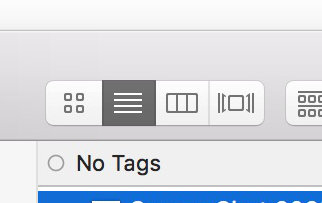
Try it yourself:
- Open Finder and select Documents.
- Click the four buttons in the toolbar to see how each view changes the layout.
- Find your favorite — many people prefer List View for sorting and Gallery View for previewing.
Searching in Finder
Finder’s search bar is powerful. It doesn’t just look in the current folder — it can search your whole Mac or even filter results by file type or date.
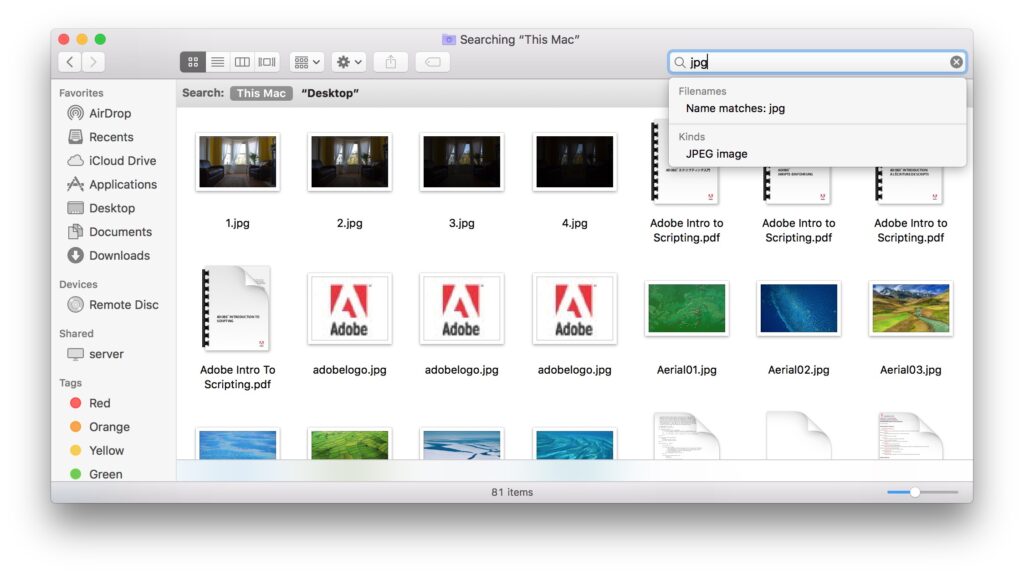
Try it yourself:
- Open Finder.
- Click Documents in the sidebar.
- In the top-right search box, type a word (for example, invoice).
- Choose This Mac at the top to expand the search beyond just the Documents folder.
- Click the + button below the search bar to add filters like “Kind is PDF” or “Date Modified this week.”
Customizing Finder
You can adjust how Finder looks and behaves so it fits your workflow.
To open Finder settings:
- Click the desktop background or a Finder window.
- In the top menu bar, choose Finder ▸ Settings (called Preferences in older macOS versions).
Things you can change:
- General tab — Pick which folder Finder opens by default when you click the Dock icon.
- Sidebar tab — Choose which shortcuts appear on the left.
- Advanced tab — Show file extensions or warnings before deleting items.

Quick Look: Preview Without Opening
Sometimes you just want to peek inside a file without launching an app.
Try it yourself:
- Select a file in Finder (for example, a photo or PDF).
- Press the Spacebar — a preview pops up instantly.
- Press Spacebar again to close it.
- You can even scroll through multiple files using arrow keys while Quick Look is open.
Tabs, Tags, and Smart Organization
You can have multiple Mac Finder windows open as tabs, just like a web browser.
You can also assign color tags to files and folders to group them by category.
Try it yourself:
- Open Finder, then press Command + T to open a new tab.
- Drag a file into the new tab’s folder to move it.
- To tag a file, right-click it and choose a color under Tags.
- To find all items with that tag, click the color in the Finder sidebar.
Deleting and Ejecting Safely
Deleting files or removing drives is simple — but best done correctly.
To delete:
- Select a file or folder.
- Press Command + Delete to move it to the Trash.
- To empty the Trash, go to Finder ▸ Empty Trash.
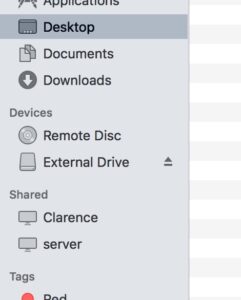
To eject a drive:
- Look at the sidebar in Finder — any connected drive appears there.
- Click the Eject icon next to it.
- Wait a few seconds until the drive disappears before unplugging.
If Finder Ever Freezes
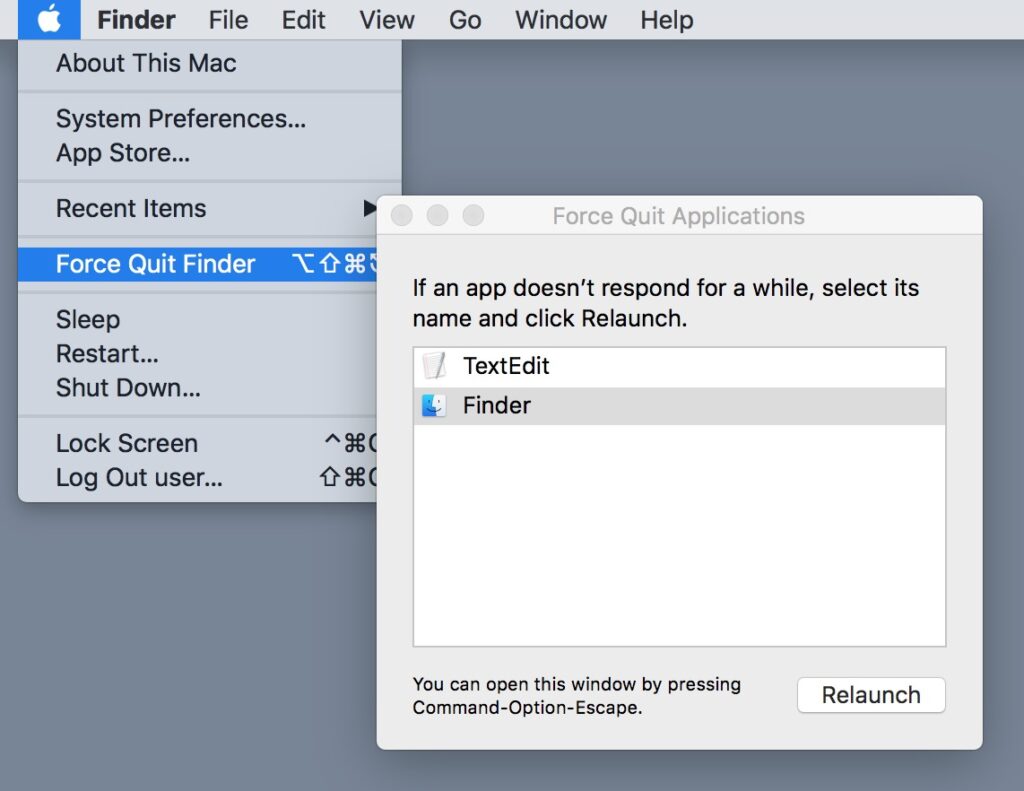
Sometimes Finder can slow down or stop responding — but you can restart it safely.
To relaunch Finder:
- Press Command + Option + Esc to open the Force Quit Applications window.
- Click Finder in the list.
- Click Relaunch. Finder will close and reopen automatically, refreshing your desktop.
Understanding Finder as an Always-On App
The key to understanding your Mac is realizing that Finder is an app that never quits. It’s the foundation that shows your desktop, your icons, and your files — but it’s still just a program running behind the scenes. You can customize it, restart it, or open multiple Finder windows just like any other app.
Final Thoughts
Once you get comfortable with Finder, your whole Mac becomes easier to use. You’ll know where things go, how to move them, and how to stay organized.
If you live in the London, Ontario area and would like personal help getting comfortable with Finder or organizing your Mac, I can help you get set up and confident using your computer day to day.