
Your Moi Rewards Card From Metro: How to Add to Apple Wallet
If you shop at Metro and collect Moi Rewards points, you can make checkout faster by learning how to Add to Apple Wallet using the Metro app. This method stores your Moi card on your iPhone or Apple Watch for quick access at checkout.
How to Add Your Moi Rewards Card From Metro
1. Install or Open the Metro App
- Open the App Store
- Search for “Metro Grocery & Moi Rewards”
- Download and open the app
This is the official way to access your Moi Rewards barcode.
2. Sign In to Your Metro Account
- Enter your email and password for your Metro account
- Once logged in, the app will display all Moi Rewards cards associated with your account
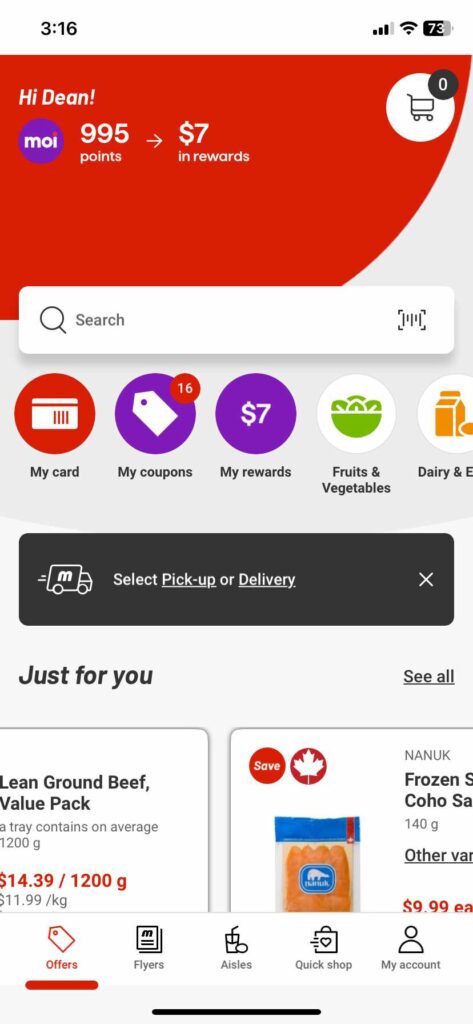
3. Tap the “My Card” or “My Account” Buttons
On the Metro app main screen, you can either tap the red “My Card” button in the middle of the screen or the “My Account” button at the bottom. Both options will take you to the screen that shows all your Moi Rewards cards associated with your Metro account.
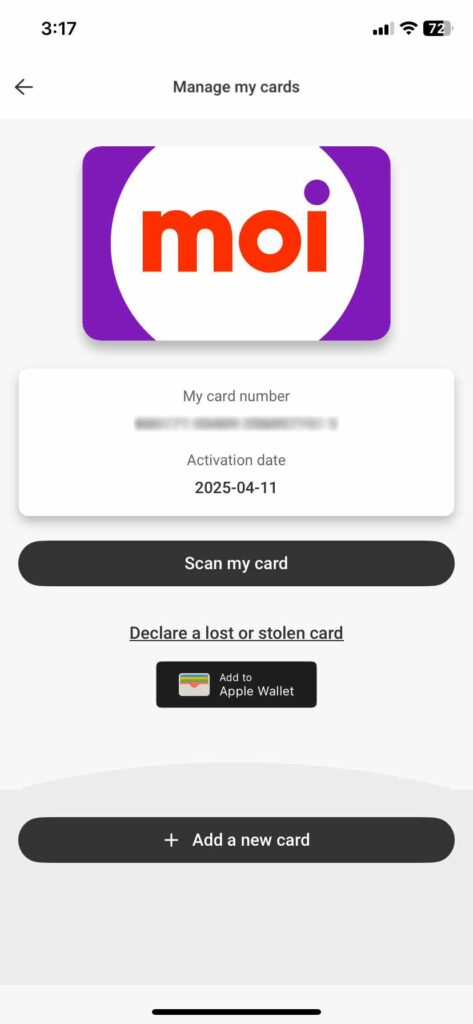
4. Confirm in Apple Wallet
- Tap the “Add to Apple Wallet” button on the “Manage My Cards” screen
- Review the Wallet preview
- Tap Add in the top-right corner
Your Moi Rewards card is now saved and ready to use.
5. Use Your Moi Rewards Card at Checkout
- Open Apple Wallet
- Tap your Moi Rewards card
- Hold your iPhone or Apple Watch under the scanner
This ensures you always have your card ready without opening the Metro app.
Pros and Cons of Using Your Moi Rewards Card
Pros
- Faster checkout — no need to open the Metro app
- Works offline — Wallet stores the barcode locally
- Apple Watch compatible — convenient for on-the-go scanning
- Reduces clutter — no physical card required
- Reliable scanning — high-contrast barcode displays clearly
Cons
- Points and offers not visible in Wallet — you still need the Metro app
- Manual updates may be needed if your card number changes
- Requires the Metro app for setup — no web-only method
- Wallet pass contains limited info — only the barcode
Final Thoughts
Using the Metro app to store your Moi Rewards card in Apple Wallet is fast, official, and reliable. Once added, the card is always accessible on your iPhone or Apple Watch, making checkout smoother and more efficient.
Need Help With Your Apple Devices?
If you’re in the London Ontario area and need help with your Apple computer, iPhone, iPad, or setting up features like Apple Wallet, I can help. Whether your Mac is slow, your email isn’t working, or you just want someone to walk you through a setup step-by-step, reach out anytime.
Get fast, local, one-on-one support — right in your own home.