
How to Upgrade from Windows 10 to 11 on Unsupported PCs Using Rufus
Why This Matters
If you’ve been wondering how to move from Windows 10 to 11 but your PC doesn’t meet Microsoft’s strict hardware requirements, you’re not alone. Windows 11 normally needs a Trusted Platform Module (TPM 2.0), Secure Boot, and a modern processor — things many older computers don’t have.
The good news is that you can still upgrade. Using a small free tool called Rufus, you can create a bootable USB installer that bypasses TPM and Secure Boot checks, letting you safely upgrade from Windows 10 to 11 on almost any computer.
Before you begin, know that this method is unsupported by Microsoft. Windows will work fine for most people, but updates and certain features might not be guaranteed.
What You’ll Need
Before you start the Windows 10 to 11 upgrade, make sure you have:
- A USB flash drive (at least 8 GB; 16 GB is better)
- A working Windows PC to create the installer
- The Rufus program (free download)
- A Windows 11 ISO file (from Microsoft)
- About 30–45 minutes
- And most importantly — a backup of your current Windows 10 installation
Step 1: Back Up Your Current Windows Installation
Before you upgrade, make a complete backup of your computer. If something goes wrong or you decide you prefer Windows 10, you’ll be able to restore everything easily.
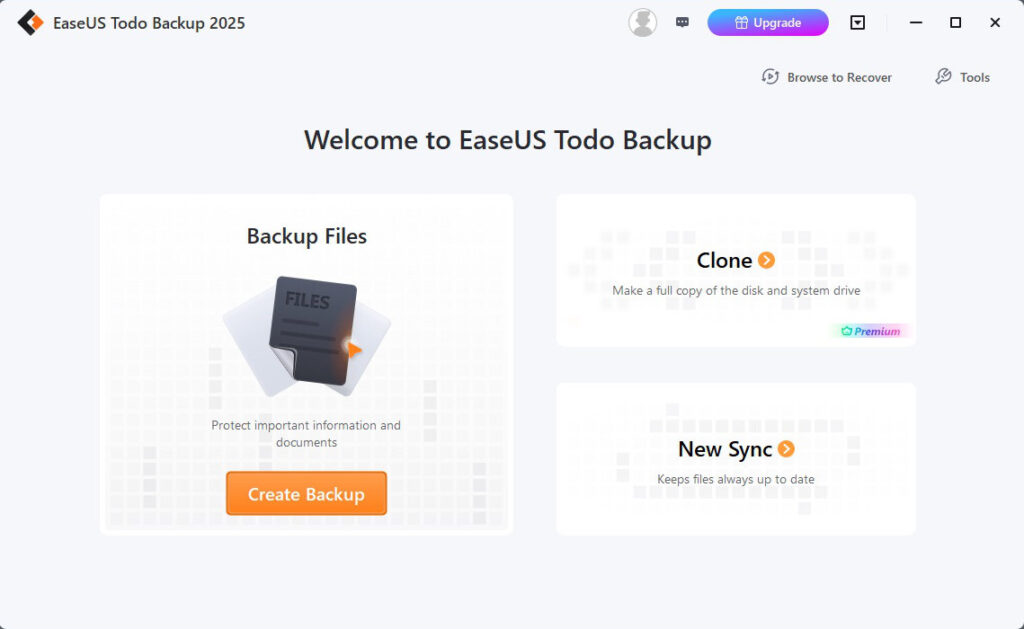
The best way is to use EaseUS Todo Backup Free, a simple backup tool we’ve already covered in another article on this site.
Follow my guide: How to Back Up Your Windows PC Using EaseUS Todo Backup Free
That article shows you how to:
- Create a full image of your current Windows 10 system
- Save it to an external hard drive
- Restore it later if you want to go back
Once your backup is complete, you’re ready to move on.
Step 2: Download Rufus and the Windows 11 ISO
- Go to the Rufus website and download the newest version (portable version recommended).
- Visit Microsoft’s Download Windows 11 page and choose Download ISO.
- Plug in your USB flash drive.
- Go to your Downloads folder and launch Rufus — it should detect your USB drive automatically.
Step 3: Set Up the USB in Rufus
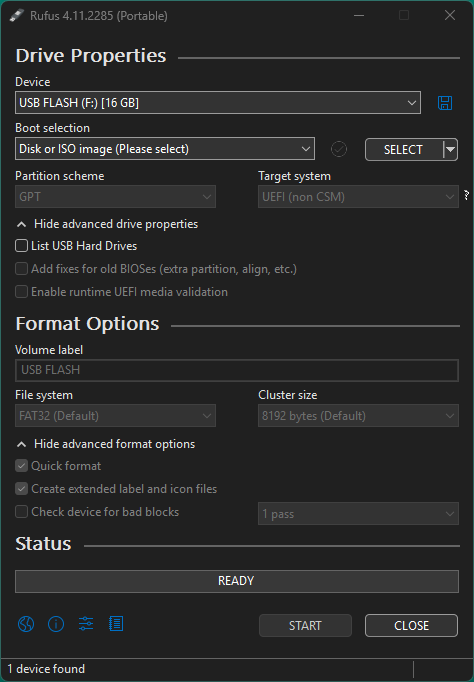
- Under Device, select your USB drive.
- Under Boot selection, click Select and choose your Windows 11 ISO file.
- Leave Image option as Standard Windows installation.
- Under Partition scheme:
- Use GPT for UEFI systems (most modern PCs).
- Use MBR for older “Legacy BIOS” systems.
- Click Start.
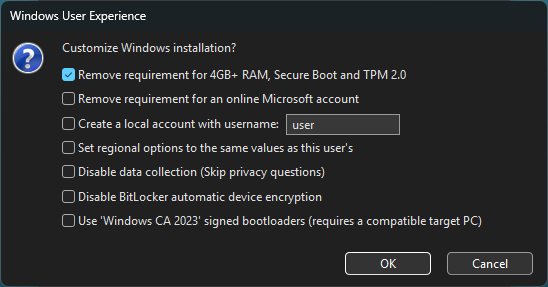
When you click Start, Rufus detects that it’s a Windows 11 ISO and shows extra Windows User Experience options — this is where you’ll enable the bypass settings.
Step 4: Choose the Bypass Options
In the pop-up box, check these options:
- Remove requirement for TPM 2.0
- Remove requirement for Secure Boot
- (Optional) Remove requirement for 4 GB RAM
- (Optional) Create a local account (no Microsoft account required)
Click OK, then Start again.
Rufus will warn you that all data on the USB drive will be erased — click OK to continue.
It may take 5–10 minutes for Rufus to finish creating the bootable USB.
Step 5: Run the Installer from Windows 10
Now it’s time to upgrade from Windows 10 to 11. You don’t even need to restart or boot from the USB stick — just run the installer right from your current system.
- Leave the new USB stick plugged in.
- Open File Explorer → your USB drive.
- Double-click setup.exe.
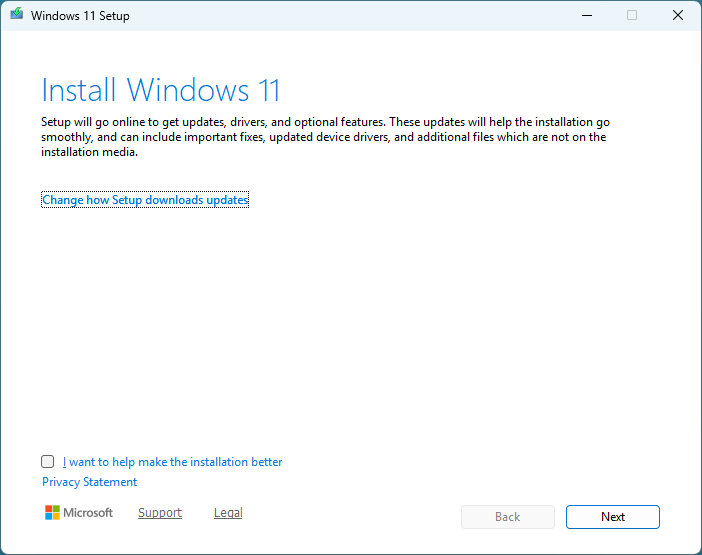
- When the Windows 11 Setup screen opens, choose:
- Change how Setup downloads updates → Not right now (faster)
- Keep personal files and apps (recommended)
- Click Next, accept the license, and continue.
Setup will automatically skip TPM and Secure Boot checks because of the Rufus bypass.
After several restarts, your PC will boot into Windows 11 — all your programs and files should still be there.
Step 6: Finish Setup and Check Updates
Once the upgrade is complete, you’ll see the clean new Windows 11 desktop.
- Open Settings → Windows Update and install any available updates.
- Confirm that your drivers (graphics, sound, Wi-Fi) are working properly.
- Reconnect your backup drive and verify your files are safe.
Screen capture idea: Show the Windows 11 desktop with centered taskbar icons.
Step 7: What to Keep in Mind
Because this method bypasses TPM and Secure Boot, Microsoft may not guarantee:
- Regular feature updates
- Full support or compatibility
- Access to some advanced features
That said, many users successfully upgrade from Windows 10 to 11 using this method without issues.
Just remember:
- Keep your EaseUS Todo Backup image safe
- Wait a few days before installing major updates
- Enjoy your refreshed computer!
Why This Helps Older PCs
Many older computers still run beautifully but don’t meet Microsoft’s strict hardware rules. With Rufus, you can extend their life, enjoy Windows 11’s modern look, and avoid registry hacks or command-line tricks.
And since you made a backup first, you can always go back to Windows 10 if you change your mind.
Appendix A: How to Roll Back to Windows 10
If you try Windows 11 and prefer your old setup, you can easily roll back to Windows 10.
Option 1: Use Windows’ Built-In Rollback
- Open Settings → System → Recovery.
- Under Go back, click Go Back.
(Available for about 10 days after upgrading.)
Option 2: Restore Your EaseUS Backup
If it’s been longer than 10 days:
- Boot into your EaseUS Todo Backup Free recovery environment.
- Choose the backup image you made earlier.
- Restore it to your main drive.
You’ll be back on Windows 10 exactly as it was — apps, files, and all.
Summary
- Back up your Windows 10 PC with EaseUS Todo Backup Free
- Download Rufus and the Windows 11 ISO.
- Create the USB installer with TPM and Secure Boot bypass options.
- Run setup.exe from your USB inside Windows 10.
- Upgrade from Windows 10 to 11 without losing your data.
- Enjoy or roll back anytime using your backup.
Need a Hand?
If you’re in the London, Ontario area and would like a bit of help upgrading your PC from Windows 10 to 11, I can help you out.