
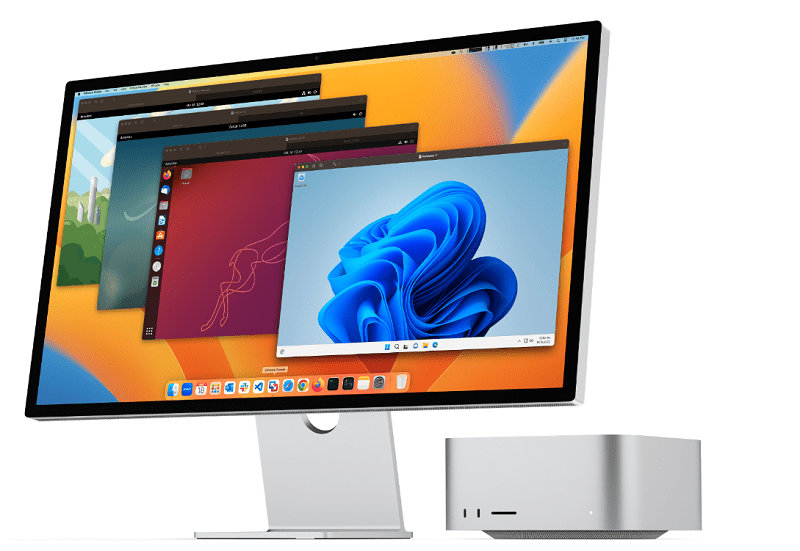
Windows on Mac: How to Run Windows 11 for Free on an M-Series Mac
If you searched for windows on mac, you are probably trying to run a Windows program on your Mac — without buying a new computer.
Good news: if you have an Apple Silicon Mac (M1, M2, M3, M4, or M5), you can run Windows 11 for free using VMware Fusion.
This guide explains what works, what doesn’t, and how to set it up, using clear language and not too much technical jargon.
The One Rule You Must Follow
On an M-series Mac:
- You must install the ARM version of Windows 11
- You cannot install the “regular PC version” of Windows.
- This is normal and expected — and it still works for most people.
Some Technical Terms
- Virtual Machine (VM)
A virtual computer that runs inside your main system, letting you use operating systems like Windows 11 through software such as VMware Fusion. - M-Series Mac
A Mac powered by Apple’s M1, M2, M3, M4, or M5 chips, using ARM architecture instead of Intel processors. - VM
Short for virtual machine—a software-based computer running inside your main system. - Network Driver
Software that allows an operating system to recognize and use network hardware to connect to the internet or local networks.
Can You Still Run Normal Windows Programs?
Yes — usually.
Even though you install Windows 11 ARM, Windows includes a built-in feature that lets it run many regular Windows programs.
That means:
- Programs made for normal Windows PCs often work
- You do not need special “ARM-only” apps
- Windows does the translation automatically
What usually works
- Microsoft Office
- Business and accounting software
- School and work tools
- Many older Windows programs
What may not work
- Programs that install drivers
- Some games with anti-cheat software
- Very old or very advanced programs
If a Windows app runs on a normal laptop, there’s a good chance it will run here too — but it is not guaranteed.
Why VMware Fusion Is a Good Free Choice
VMware Fusion is free for personal use.
Here’s what you need to know:
- You can use Fusion for free at home, school, for learning, testing, or hobby projects
- You do not need to pay for a license for personal use (macrumors.com)
- Paid licenses are only needed if VMware is used commercially or for revenue-generating activities (winbuzzer.com)
- VMware Fusion Pro is the full version even in free mode, not a limited trial (mactech.com)
This makes VMware Fusion an excellent choice for running Windows 11 on an M-series Mac without spending money.
What You Need Before You Start
You will need:
✔ A Mac with an M-series chip (M1–M5)
✔ macOS installed and updated
✔ A free VMware account
✔ Windows 11 ARM installer file
Simple Step-by-Step: Windows on Mac (Free)
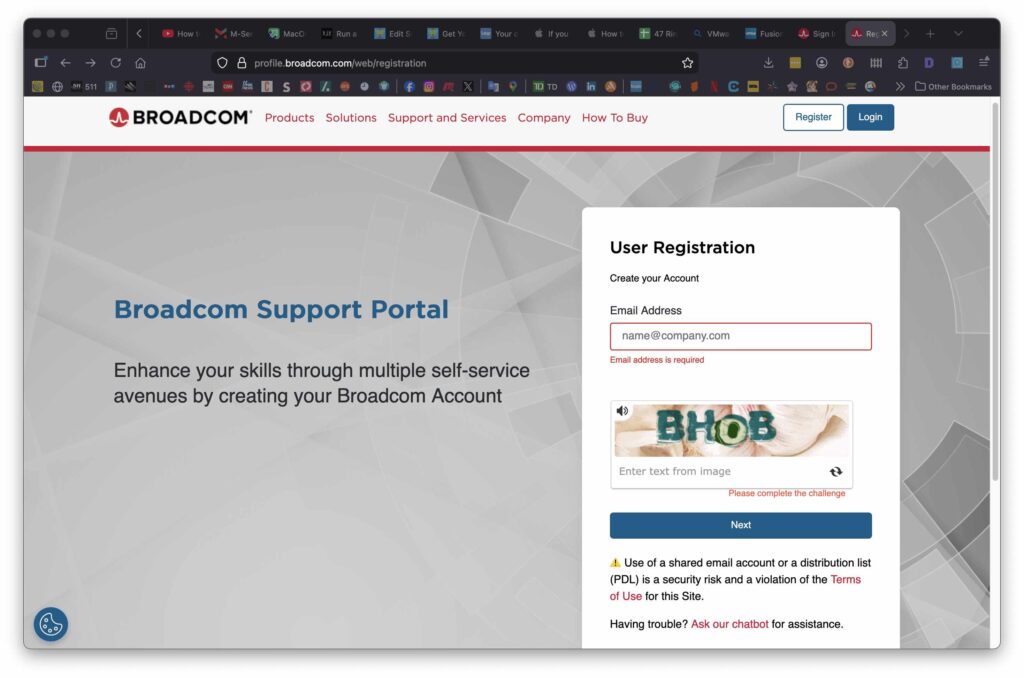
Step 1: Download VMware Fusion
- Create a free VMware account
- Download VMware Fusion for macOS
- Current version: 13.6.4 (as of this writing).
- After logging in, you will be taken to the VMware Fusion download page.
- Download the macOS .dmg installer file. Fusion-13.6.4-24832108_universal.dmg
- Follow the on-screen instructions to Install it
When asked about a license, choose Personal Use (Free).
Step 2: Get Windows 11 ARM
- Download Windows 11 ARM from Microsoft
- Save the file to your Mac
This is the only version that works on M-series Macs.
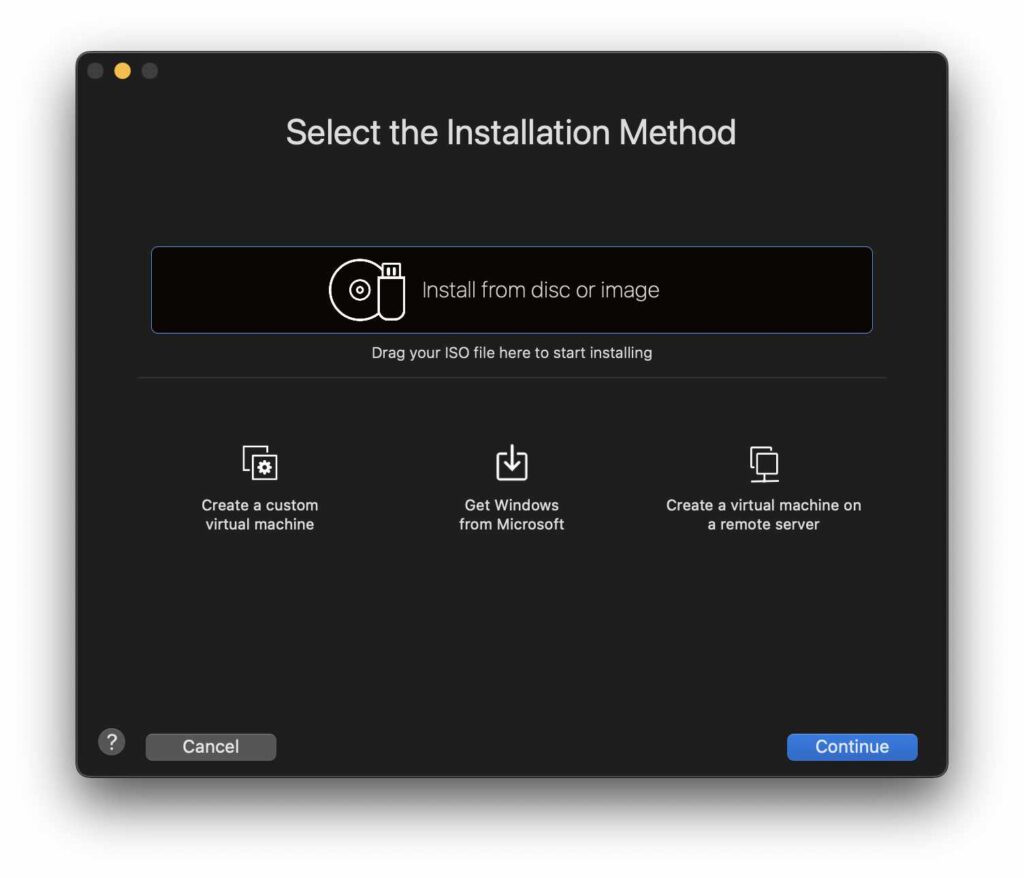
Step 3: Create Your Windows Machine
- Open VMware Fusion
- Click New to create a new Virtual Machine
- Choose the Windows 11 ARM iso file you downloaded earlier
- Accept the default settings
Give it a name like “Windows 11 on Mac”.
Step 4: Install Windows
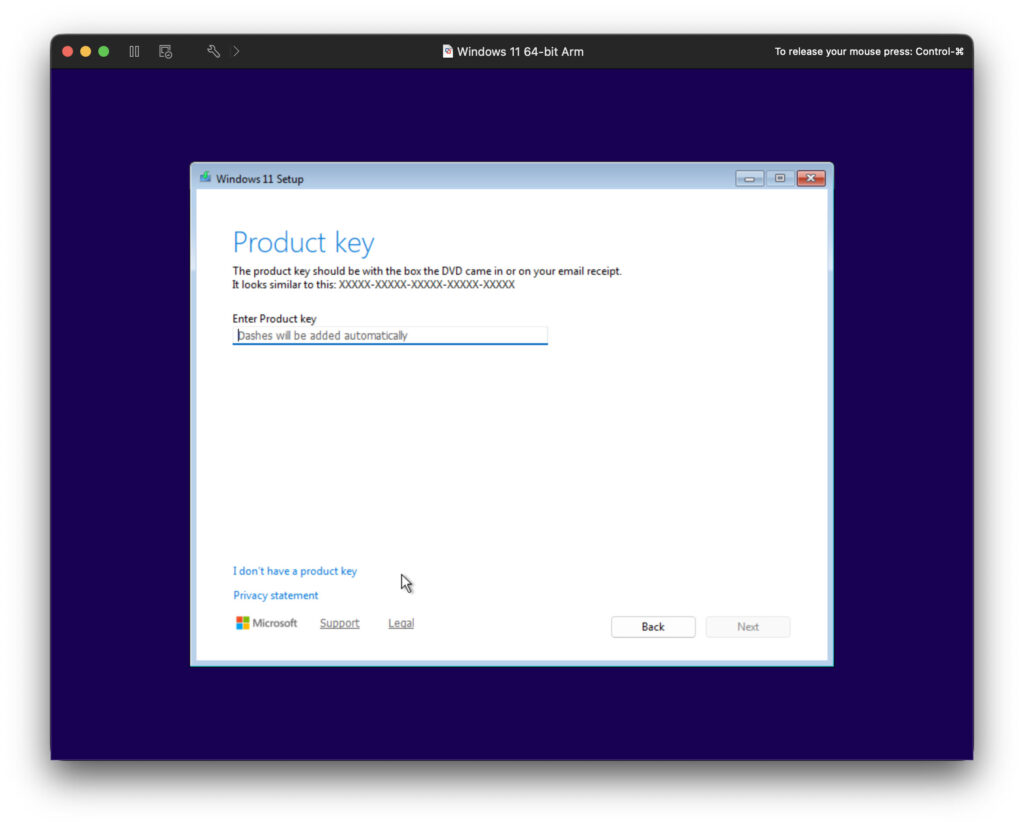
- Click Start
- Follow the on-screen steps
- Choose your language and region
You can skip the product key if you don’t have one yet. You can run Windows 11 for free without activating it—you’ll just have limited personalization options and a small desktop watermark.
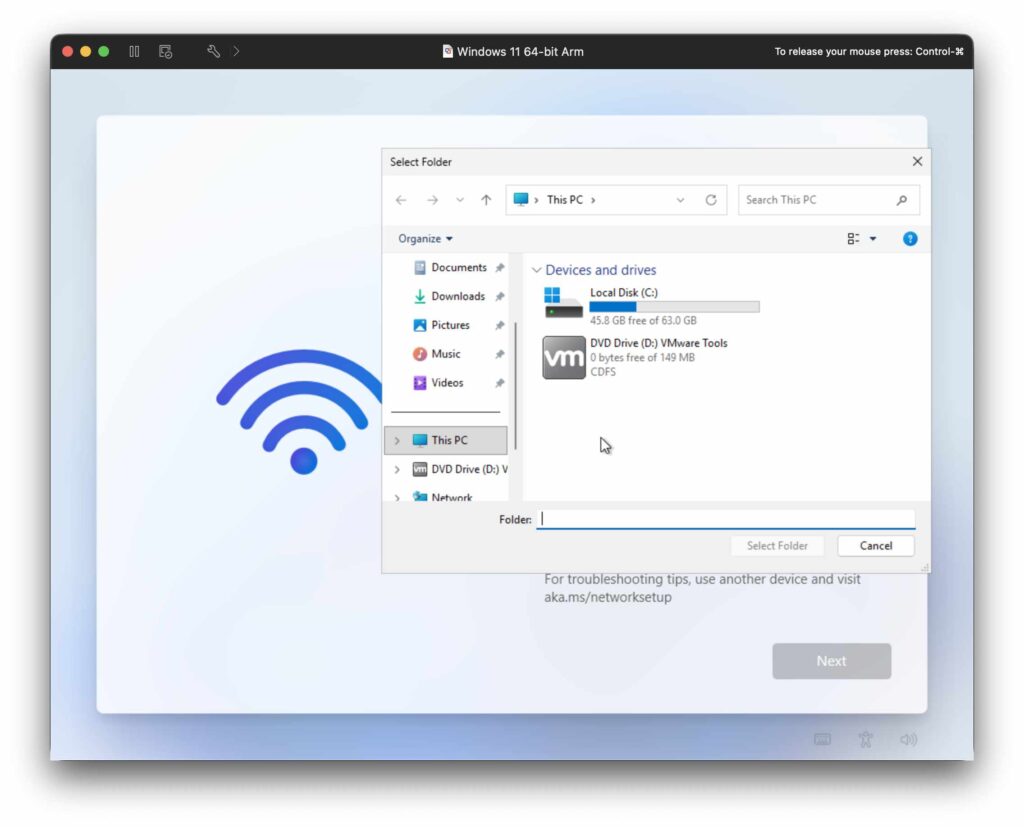
Getting Stuck on the “Let’s Connect You To A Network” Screen.
You may experience a situation where you are not able to continue past the “Let’s Connect You To A Network” screen. If that happens you will need to install a network driver using these steps.
- Go to the Virtual Machine menu for VMware Fusion and select “Install VMware Tools.”
- After a few seconds a virtual DVD drive will be added to the Windows VM that includes required drivers.
- Now click the “Install Driver” button on the screen from step 1.
- Select the “VMware Tools” DVD drive from the list and press “Select Folder”
- The “Next” button should turn solid and you can press it and continue with the Windows setup.
Step 5: Finish Setup
When Windows opens:
- Let Windows update
- Install VMware Tools into the Windows 11 machine.
- VMware Tools is a small utility package that improves a virtual machine’s performance and usability by enabling features like better graphics, shared clipboard, and smoother mouse and screen integration.Install VMware Tools if asked.
- VMware Tools is a small utility package that improves a virtual machine’s performance and usability by enabling features like better graphics, shared clipboard, and smoother mouse and screen integration.Install VMware Tools if asked.
You now have Windows 11 running on your Mac.
Do You Need to Activate Windows?
Windows will work even without activation.
You may see:
- A small watermark
- Fewer personalization options
But programs will still run.
Things You Should Know
- This does not replace a real PC for gaming
- It works best for school, work, and everyday programs
- You do not need to restart your Mac to use Windows
Windows runs in its own window, like any other app.
Summary: Windows on Mac (Free)
✔ VMware Fusion is free for personal use (macrumors.com)
✔ Works on M1, M2, M3, M4, and M5 Macs
✔ You must install Windows 11 ARM
✔ Many normal Windows programs still run
✔ No Boot Camp needed
If you want windows on mac without paying, this is one of the best options available.
Need Help With Your Apple Devices?
If you’re in the London Ontario area and need help with your Apple computer, iPhone, iPad, or setting up features like Apple Wallet, I can help. Whether your Mac is slow, your email isn’t working, or you just want someone to walk you through a setup step-by-step, reach out anytime.
Get fast, local, one-on-one support — right in your own home.